Version 1.1.2 is available for Windows. Looking at your files needs no key and does not expire. Download it.
Motion
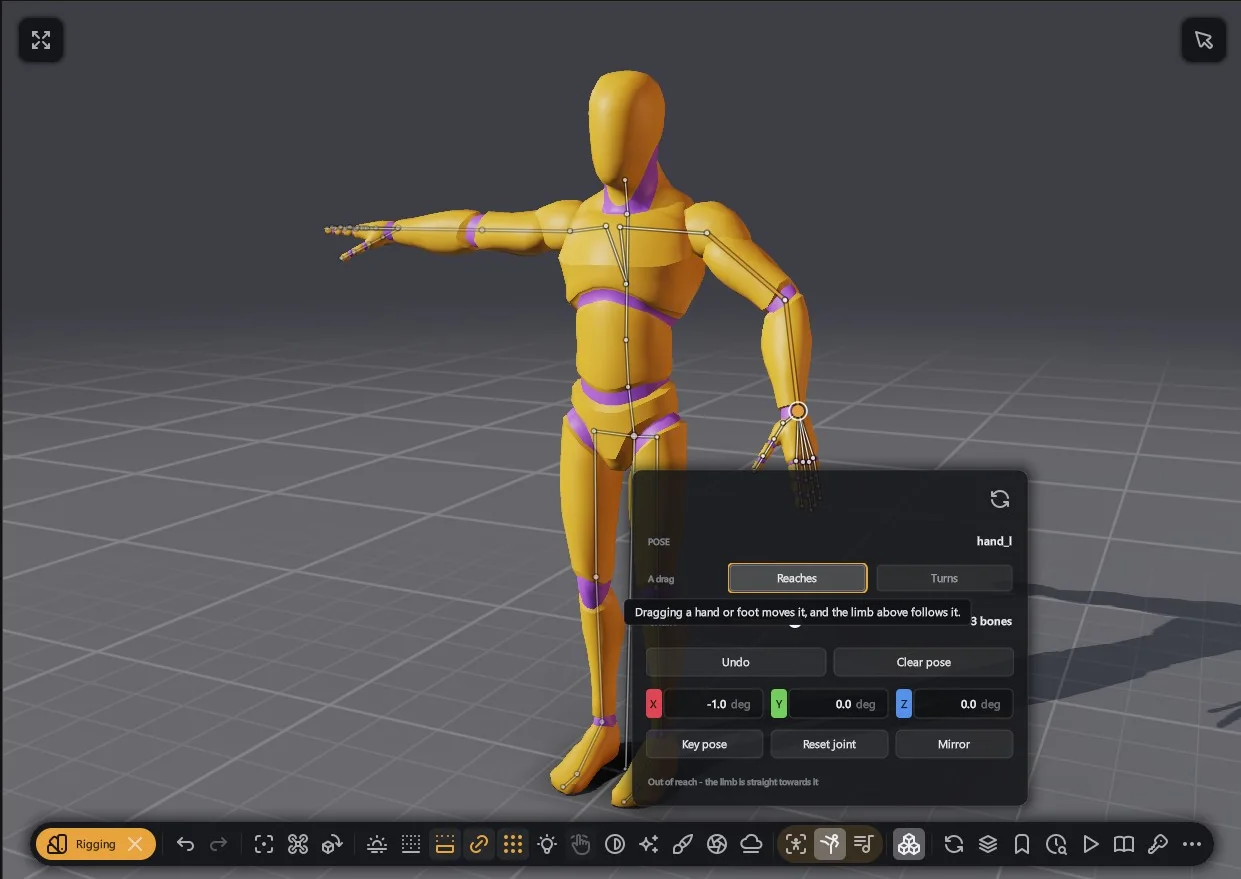
Motion capture
Play capture clips on a mannequin or on any skeleton.
- Every clip in a folder gets a thumbnail of the character posed.
- Clips from CMU and Quaternius come with it, for your own characters.
- Feet stay pinned where they touch the ground.
- Several actors share a scene, each with its own start, speed and loop.
- Alembic and USD transform caches play as clips.
- Cartoon shading, outlines and depth of field work while a clip plays.
Clips and playback
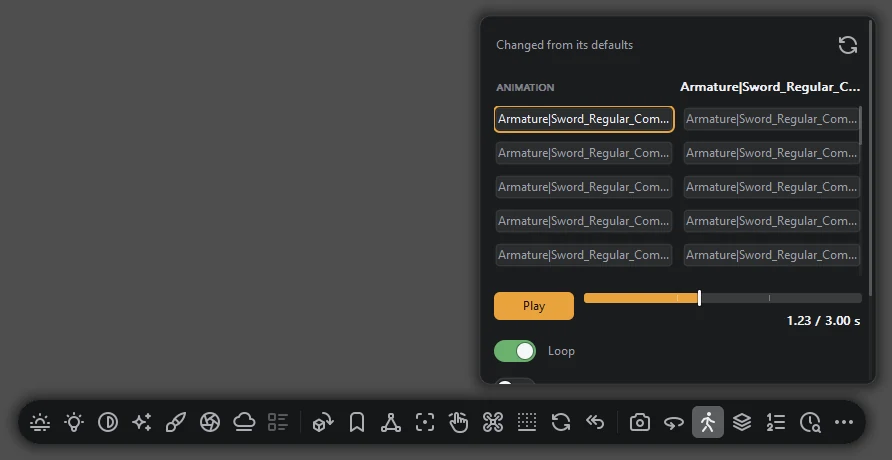
Pick any animation in a file and scrub to any frame.
- A file with several animations lists them in a grid.
- In place keeps a walk cycle at the origin.
- Repair motion mends spikes, bent knees and backwards feet.
- Clip to keys puts the playing clip on the time dock.
- Skeleton shows the rig over the mesh.
Rigging and posing
Give a figure a skeleton with skin weights in seconds.
- 103 of Mixamo's 108 characters rig automatically.
- Fit manually puts 13 joints on the model for you to drag.
- Pose joint by joint, with pins, hand shapes and Stand, Sit, Walk, T or A.
- Paint weights shows the picked bone's weights as a heat map.
- Save the rig to a .h3rig file beside the model.
The time dock
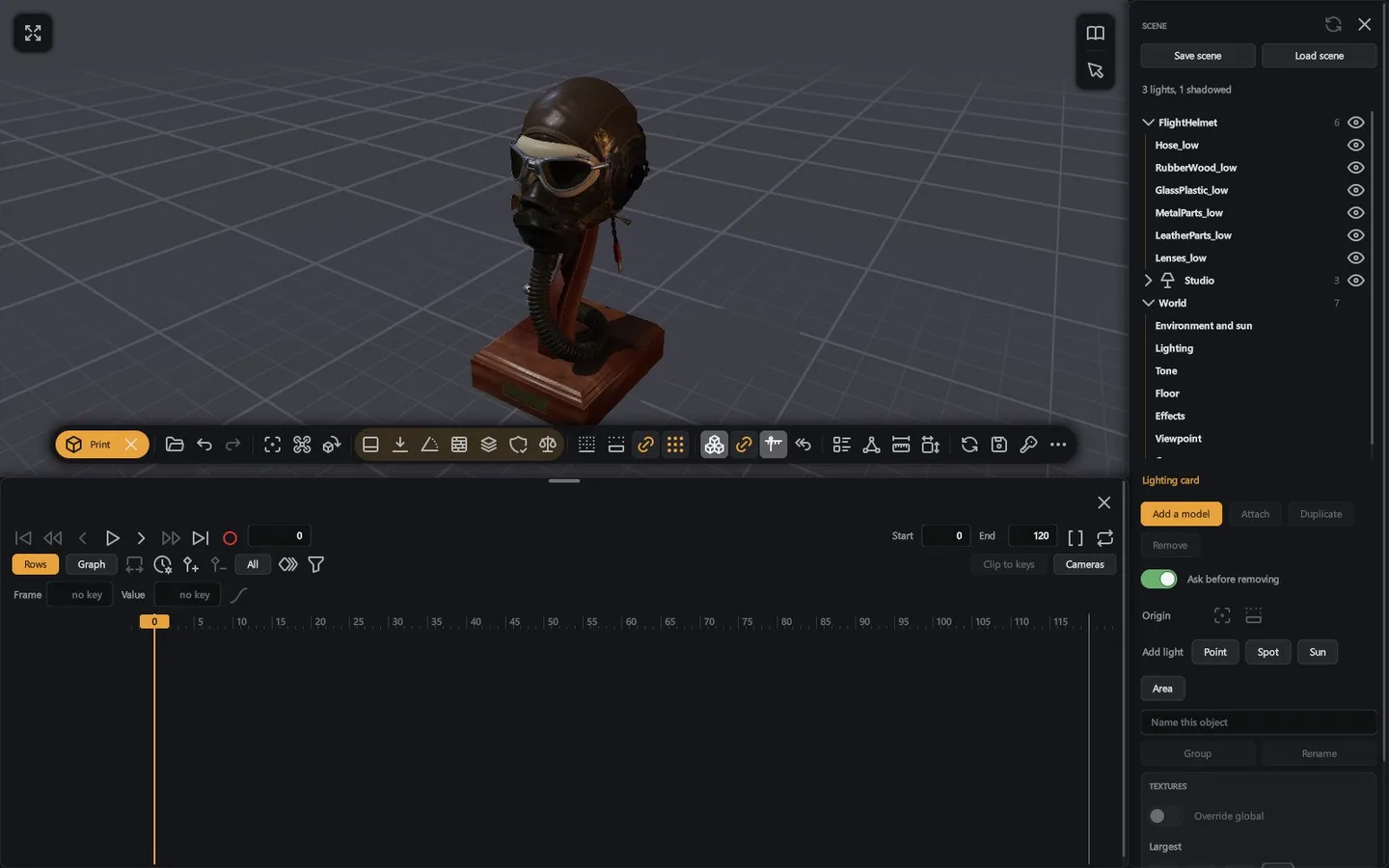
A timeline with keys, curves and a graph editor.
- Key objects, cameras, lights and card settings.
- Bezier, linear or stepped curves, with five tangent types and easing presets.
- Keyed paths draw over the picture, and you drag the keys in 3D.
- Make one setting follow another, such as a light dimming with distance.
- Save keys, cuts and motions to a .h3anim file.
Cameras and cuts
Add cameras, aim them at moving objects and cut between them.
- Add a camera at the pane's view and key it.
- Aim a camera at a moving object.
- Move a picked camera, turn it about its aim and see its lens.
- A key on the Cut track jumps to the next camera.
Sprite sheets
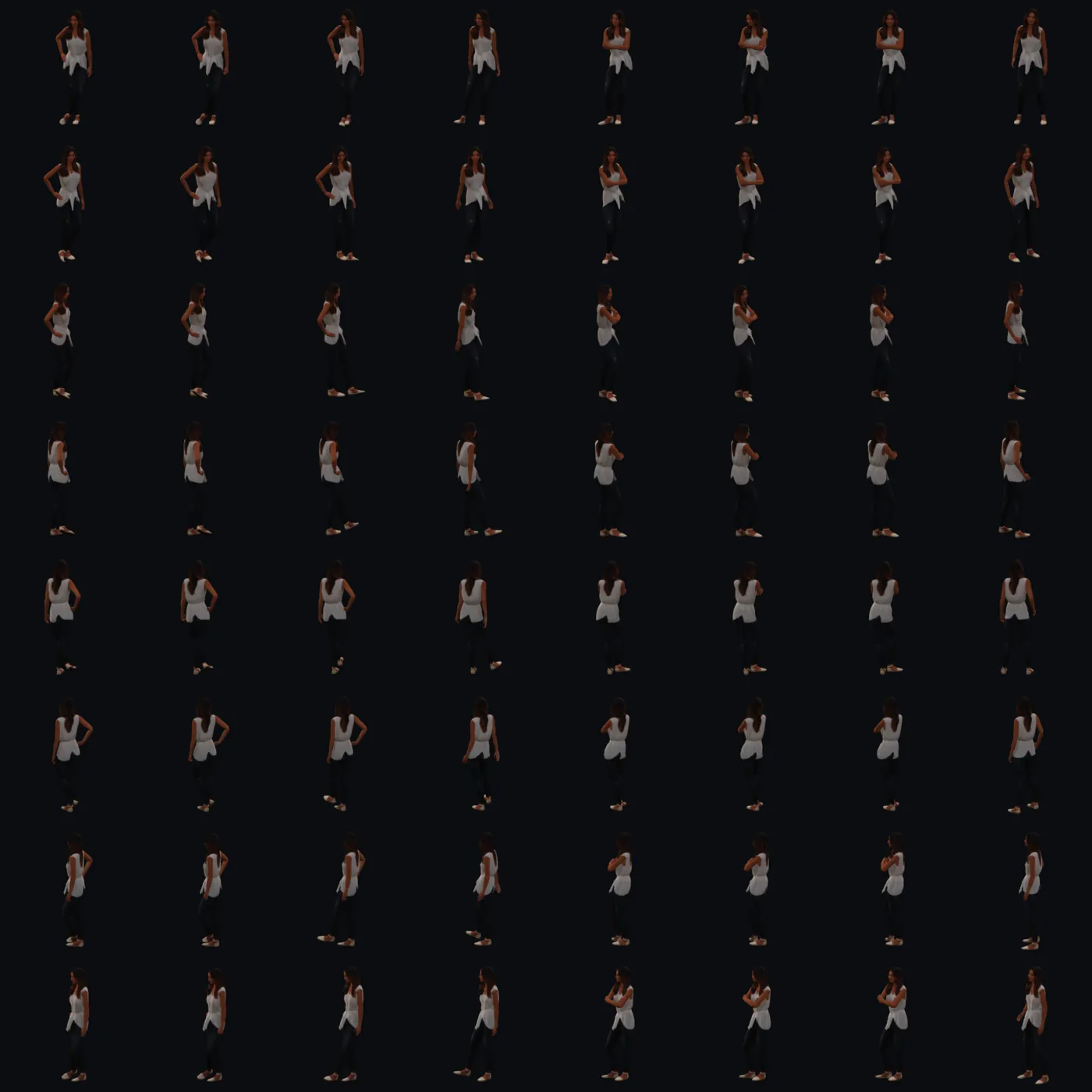
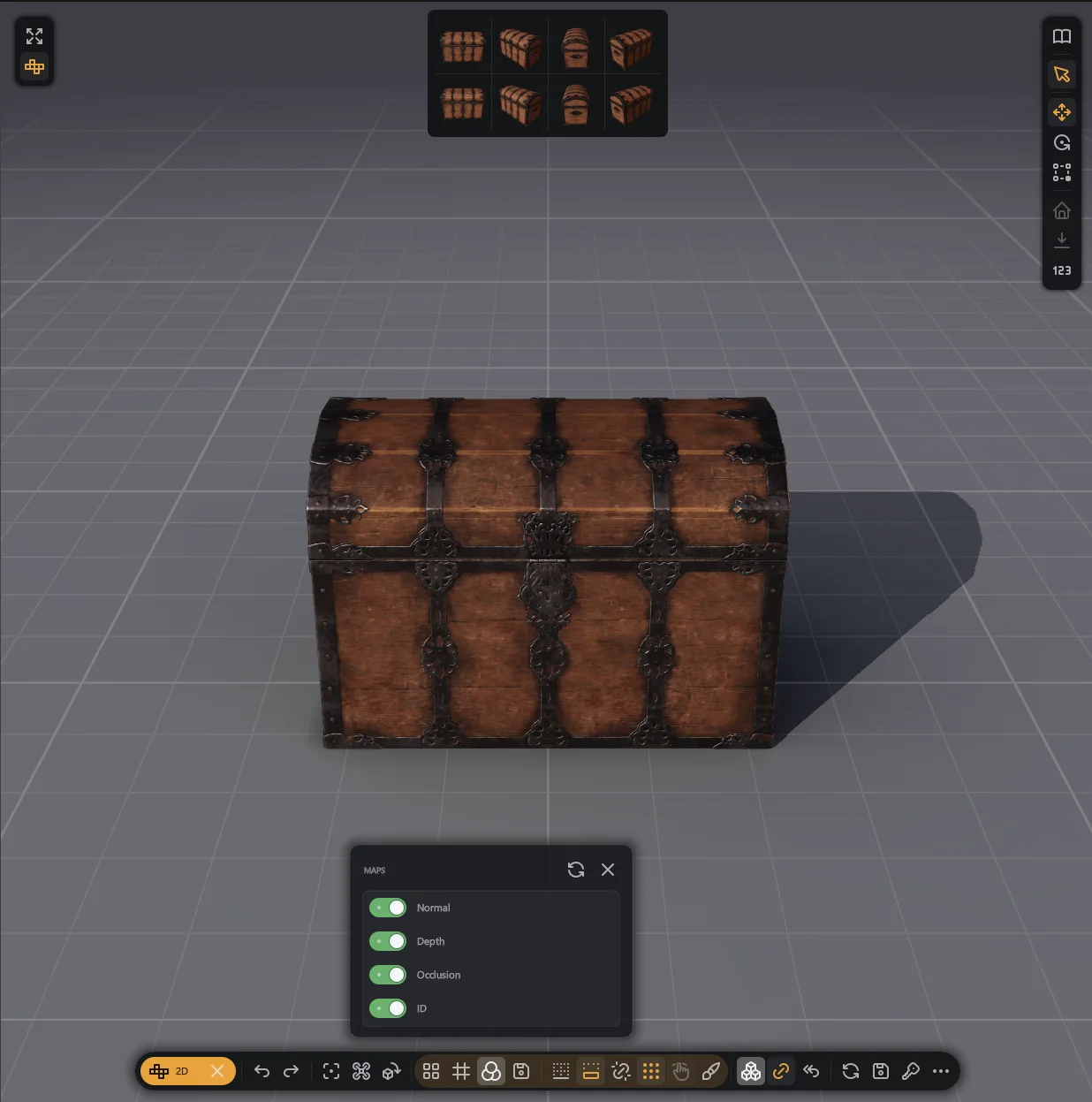
Export a clip as one PNG with a JSON sidecar.
- 4, 8 or 16 directions, cells of 64 to 512 px, 2 to 24 frames.
- Sheets for Godot, TexturePacker, GameMaker and Aseprite.
- Cells are cut out on a transparent ground.
- Add a normal map, depth map, occlusion map or an ID mask.
- The sprite stays steady from cell to cell.
2D and game art
A card for each task: animation sheet, pixel look, maps and exports.
- Pixel look: 16 to 256 rows, 2 to 64 colours, dither and outline.
- Aseprite files open with layers, tags, onion skin and timing.
- Tiled .tmx maps in four layouts, and .ldtk projects as one map.
- Nearest, Scale2x and xBR upscalers, saved at 1x to 4x.
- An alpha analyser and a Mips card for textures.
Light
Environment
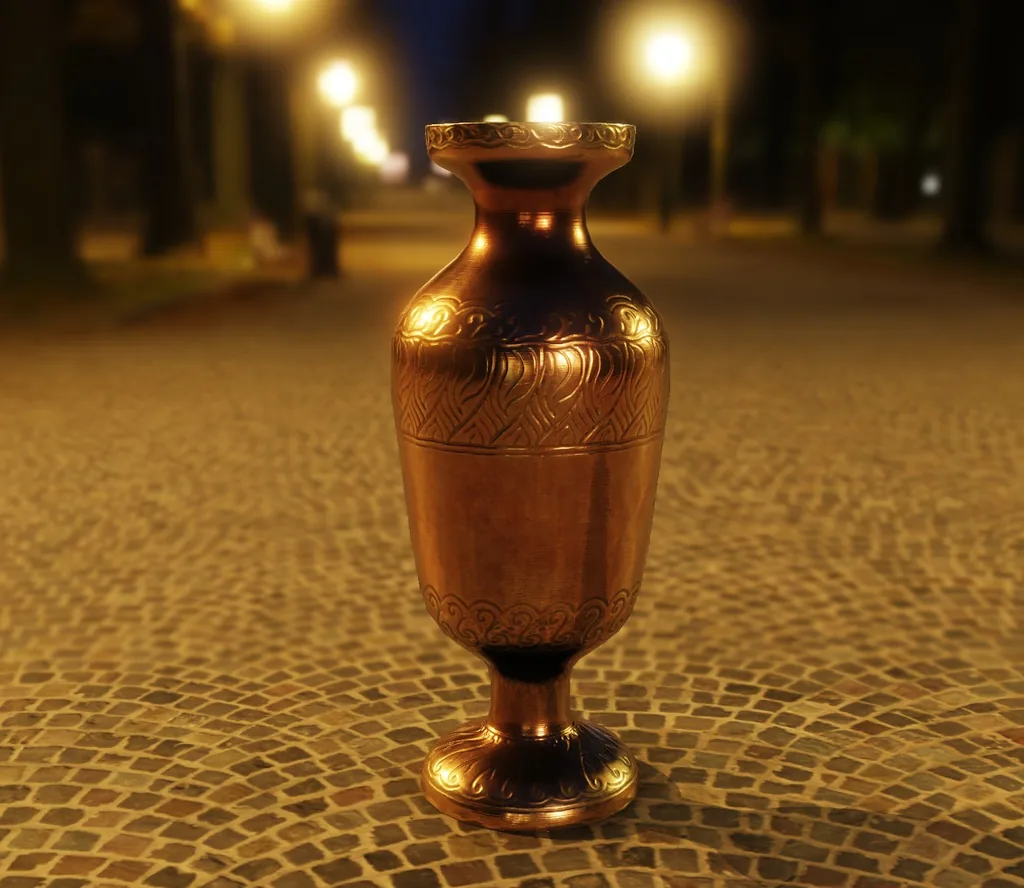
Light the scene with an HDR image from the gallery or your own.
- Yaw turns the image around the model, and Intensity scales its light.
- Metals take their colour from the map.
- The backdrop can be a colour, a gradient, the image or your bitmap.
- The backdrop has its own blur and exposure.
Floor
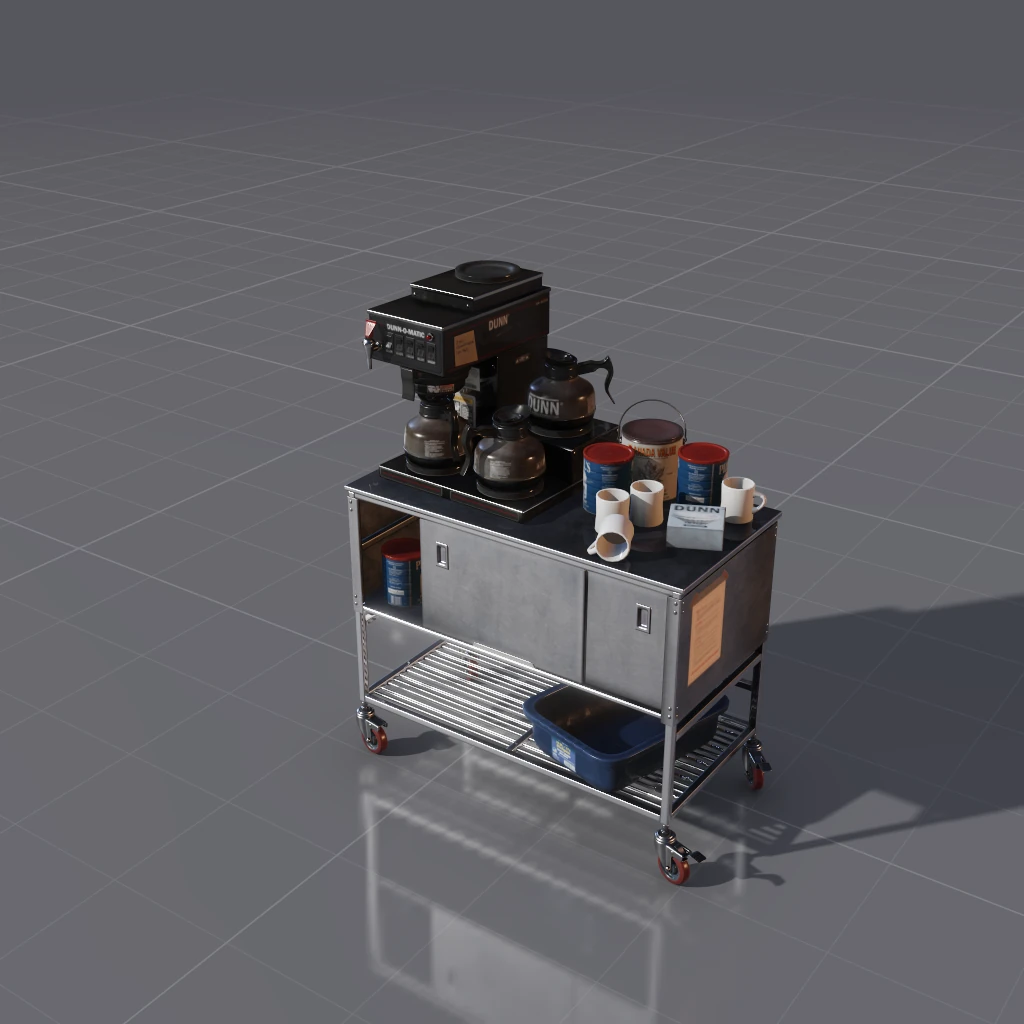
A ground under the model that casts shadows and reflects.
- Twelve materials, or a grid.
- Reflections blur with the floor's roughness.
- A shadow catcher gives a transparent background for captures.
- Scale, offset and rotation place the material.
- Drop a picture in the floors folder to add your own.
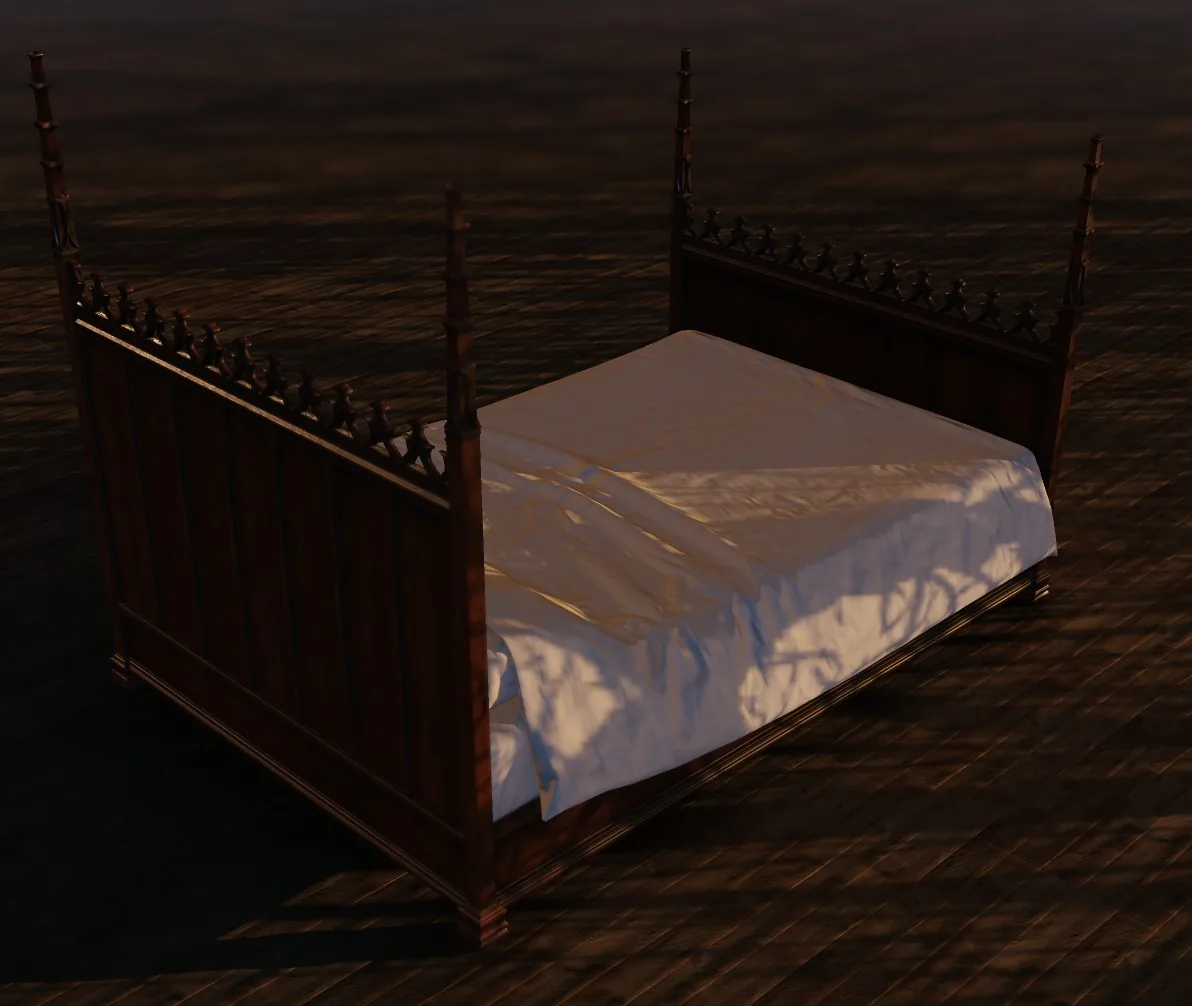
Gobos
Pattern the key light with a window, blinds or foliage.
- The pattern lands on the model and the floor.
- Scale, offset, rotation, softness and repeat place it.
- Stripes, window, dapple, water ripple and leaves are included.
- Use your own image of light and shade.
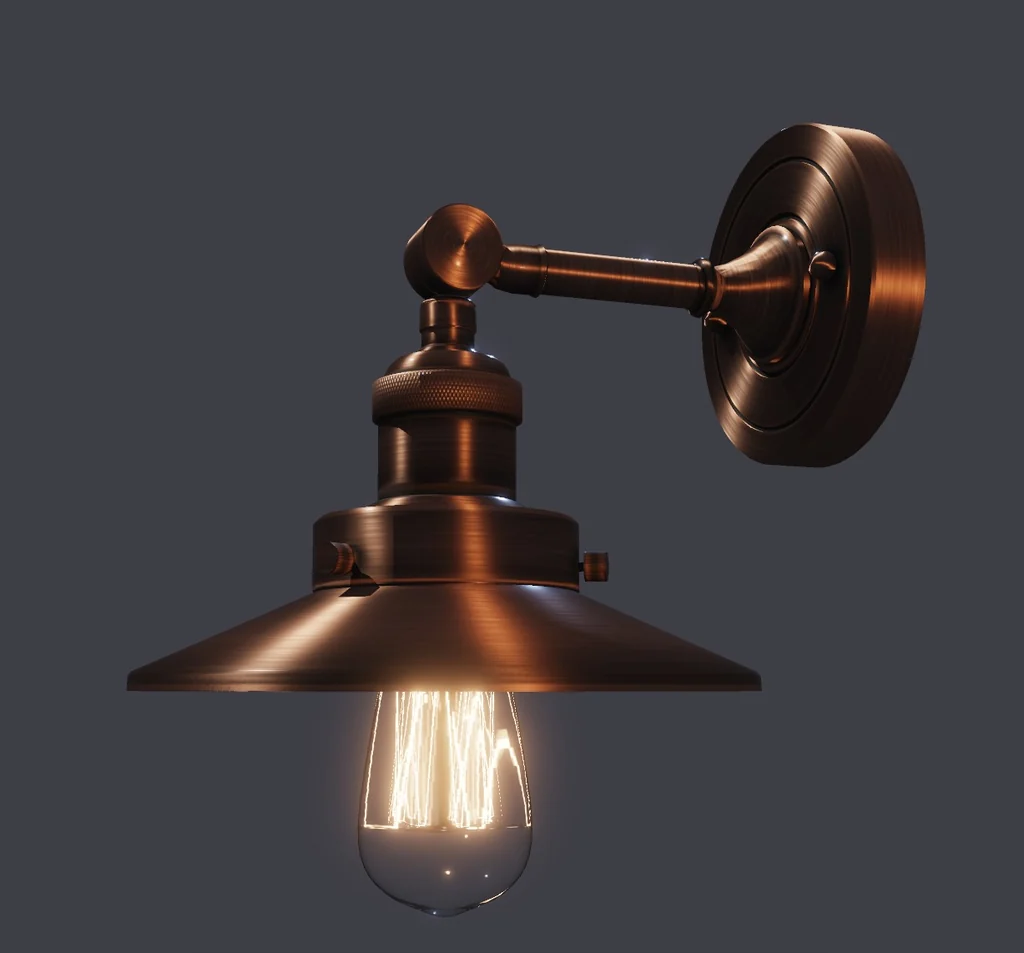
Lights
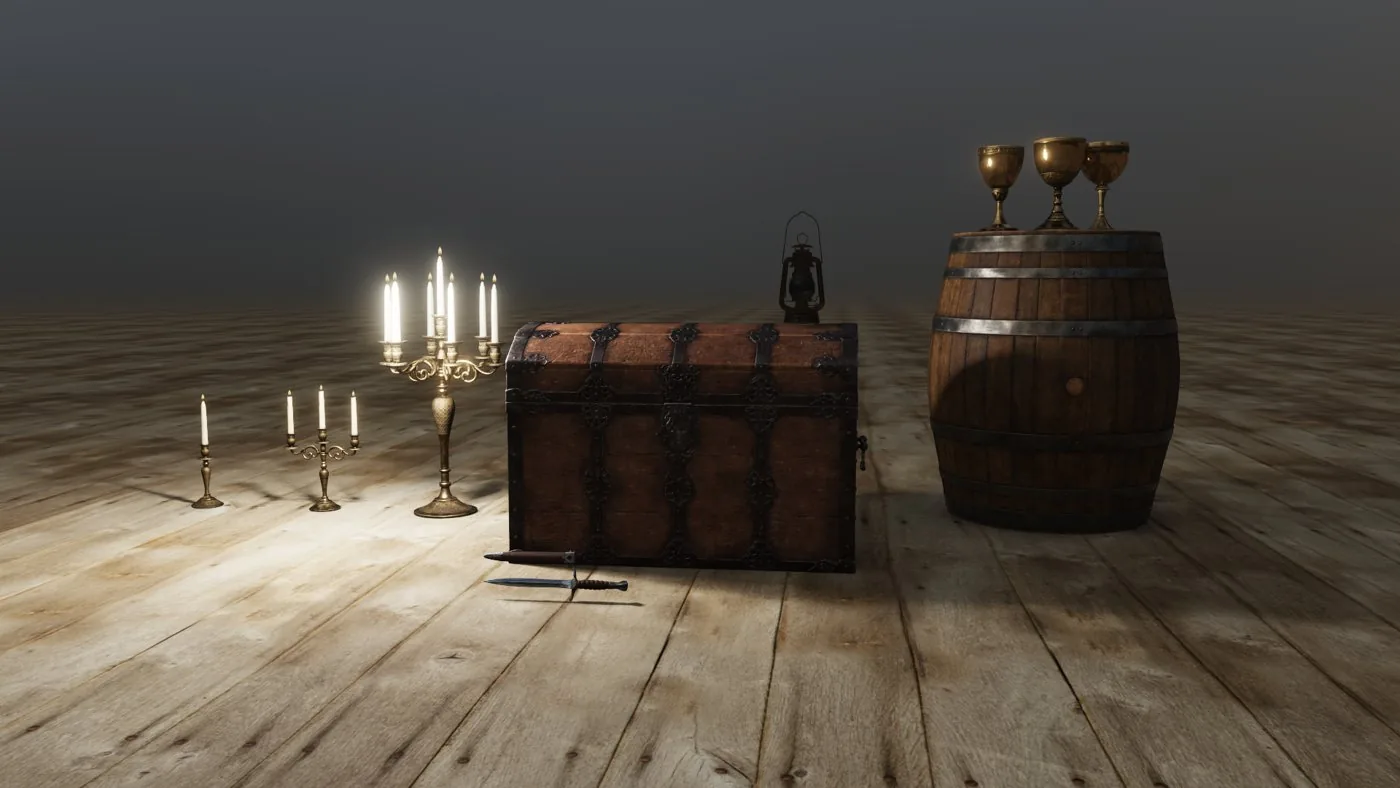
Key, fill and rim, with six setups to start from.
- Three-point, Rembrandt, butterfly, split, rim and product setups.
- Colour from Kelvin presets, and a size for softer shadow edges.
- Up to 4096 lights in a scene.
- Glowing parts light the scene. Up to 64 are used at once.
- Emissive materials light what is near them.
Placing lights
Place point lights anywhere in the scene.
- Drag a handle and the light swings around the model.
- A light outside the picture keeps a handle at the edge.
- Up to 16 lamps and spots cast shadows at once.
- Contact shadows darken where a part meets a surface.
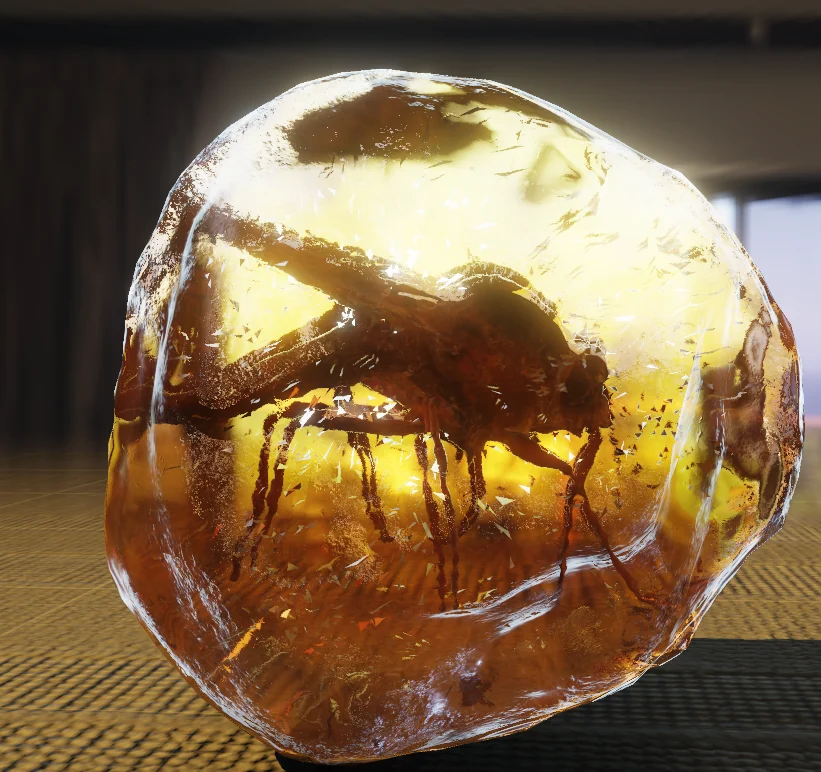
- Coloured glass tints the light that passes through it.
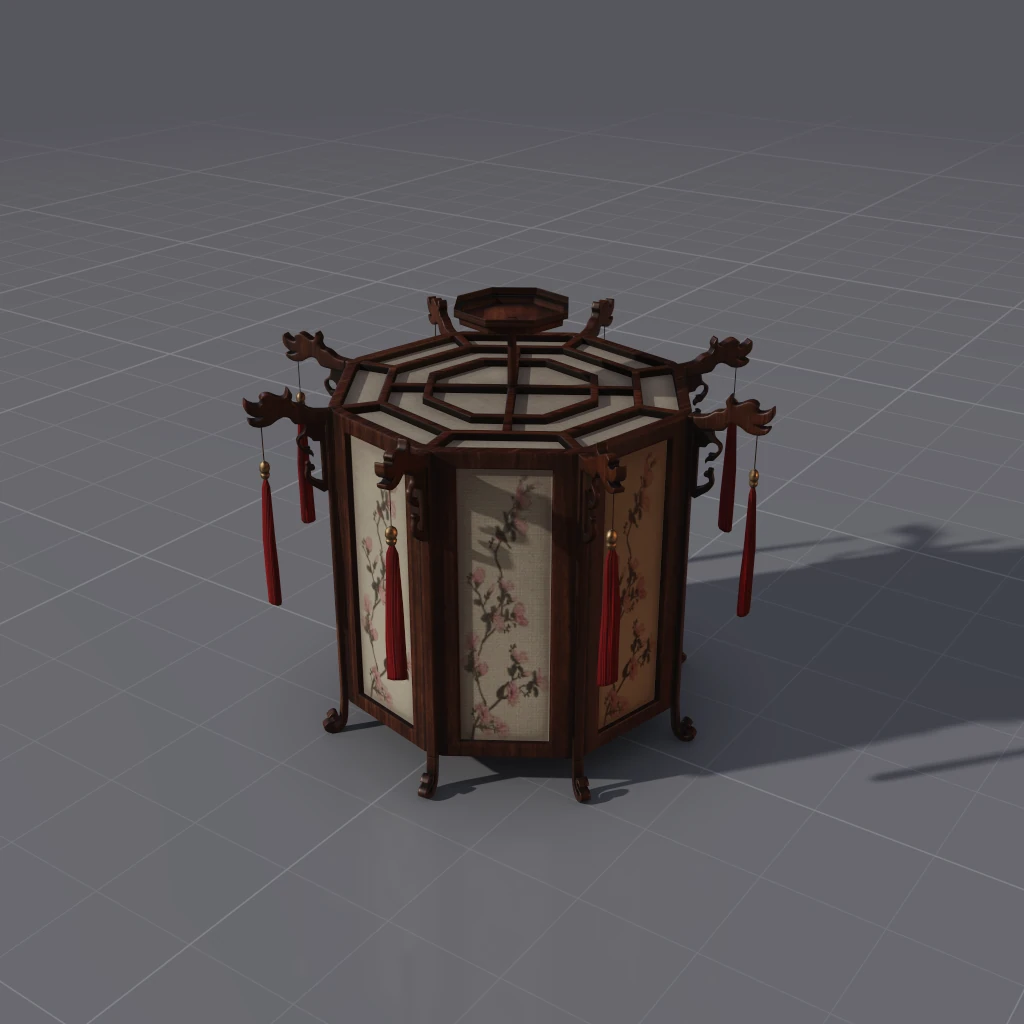
Light types
Drop Point, Spot, Sun and Area lights right where you click.
- Each light has its own switch in the scene list.
- Set a light's brightness up to 256 stops.
- Handles set a spot's cone, a point's range and an area's size.
- Switch on rays for ambient occlusion, key shadow, specular occlusion and transmission.
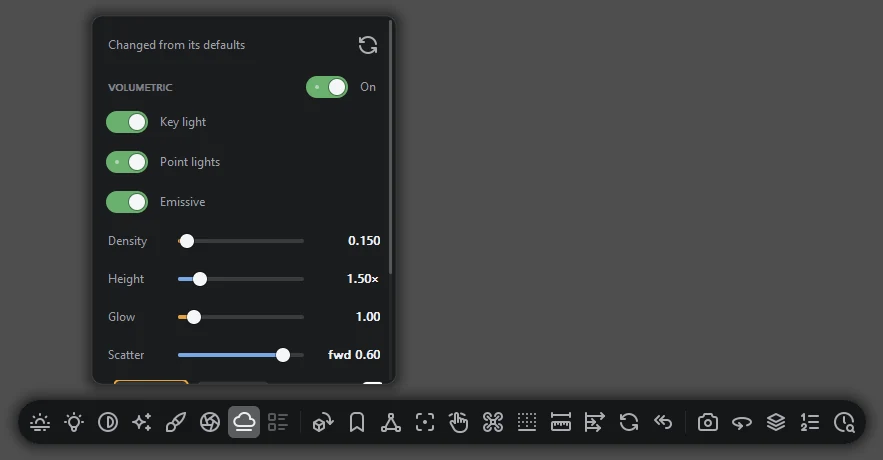
Volumetric light
Beams, haze and glow in the air around your model.
- A gobo turns a window pattern into separate shafts.
- Density, glow, height and scatter are all adjustable.
- Switch the key light, point lights and glowing materials on or off for it.
- Choose 32, 64, 128 or 256 steps.
Volumes
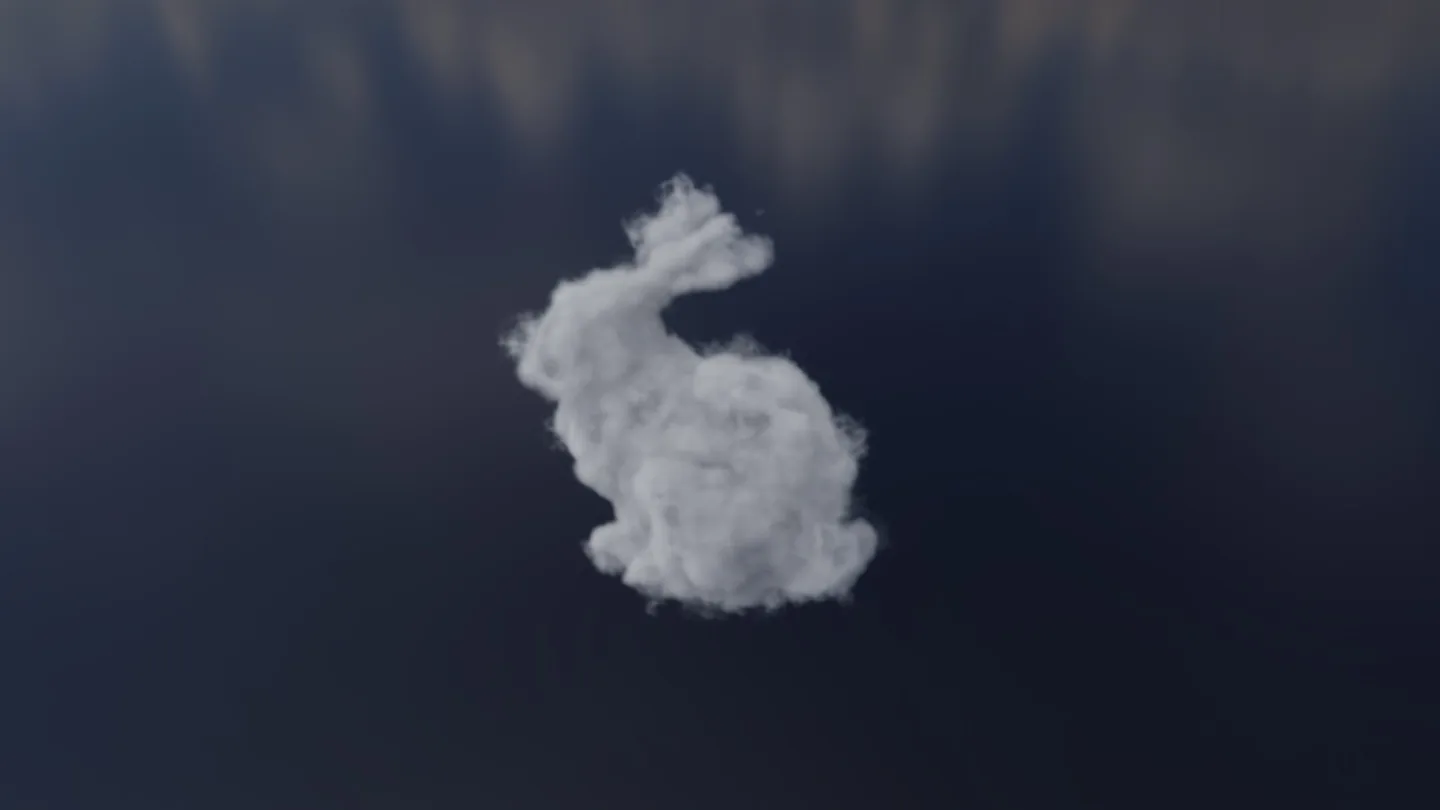
Open clouds and fire from OpenVDB and NanoVDB.
- Clouds are lit by the sun and sky.
- Fire glows by its temperature.
- Sequences play on the timeline.
- Voxel files open, including MagicaVoxel .vox and Qubicle .qb.
- .sdf distance grids and .mol molecules open as meshes and point clouds.
Look
Lens blur and motion blur
Real lens blur, soft point-light shadows and motion blur.
- Aperture with blade count and rotation, five blades by default.
- Focus follows the subject as you move.
- Motion blur by shutter angle.
- When you stop moving, lens blur and soft shadows sharpen up to 64 samples.
Bloom, occlusion and outlines
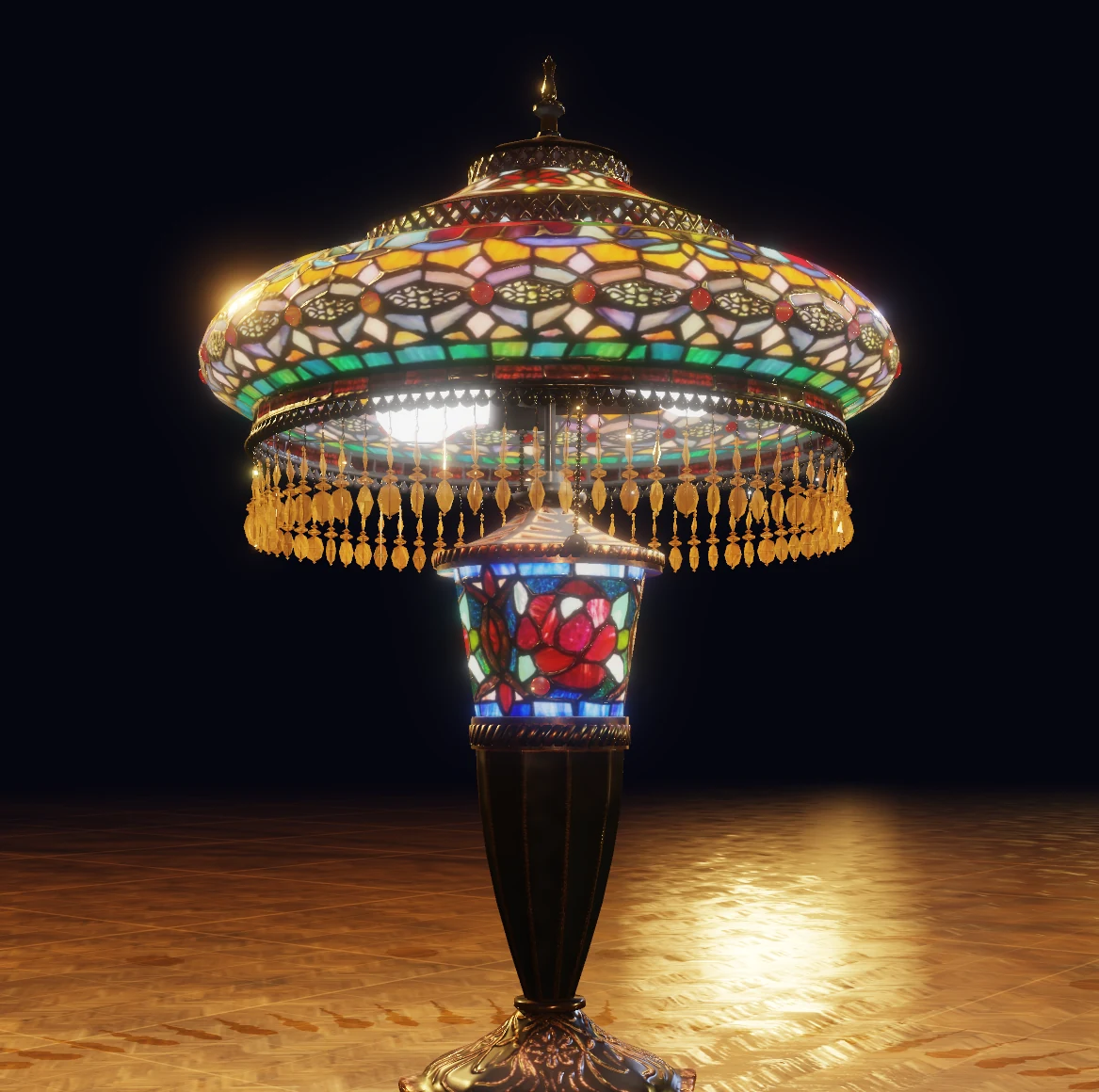
Finish the picture with bloom, contact shadow and ink lines.
- Bloom from emissive shades and bright highlights.
- Ambient occlusion in creases.
- Silhouette, crease and border lines, solid, dashed or dotted.
- Antialiasing: Off, Jitter, 2x and 4x.
- Temporal antialiasing while the camera moves.
Cartoon shading
Draw the whole frame as flat bands of colour.
- Set the number of bands.
- Rim light, halftone dots and posterise.
- Covers the model, the floor and the glass.
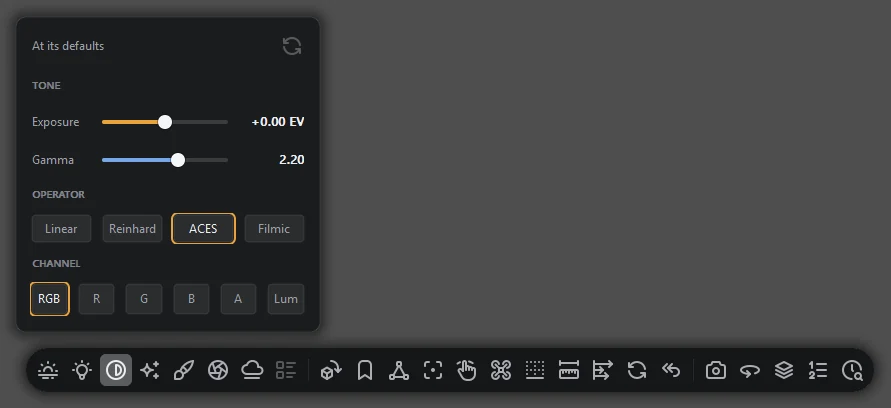
Exposure and tonemapping
Choose how light becomes pixels, for models and HDR images.
- Linear, Reinhard, ACES or filmic.
- Gamma 2.2 by default.
- View red, green, blue, alpha or luminance alone.
- Bring back detail in a blown highlight.
Small detail
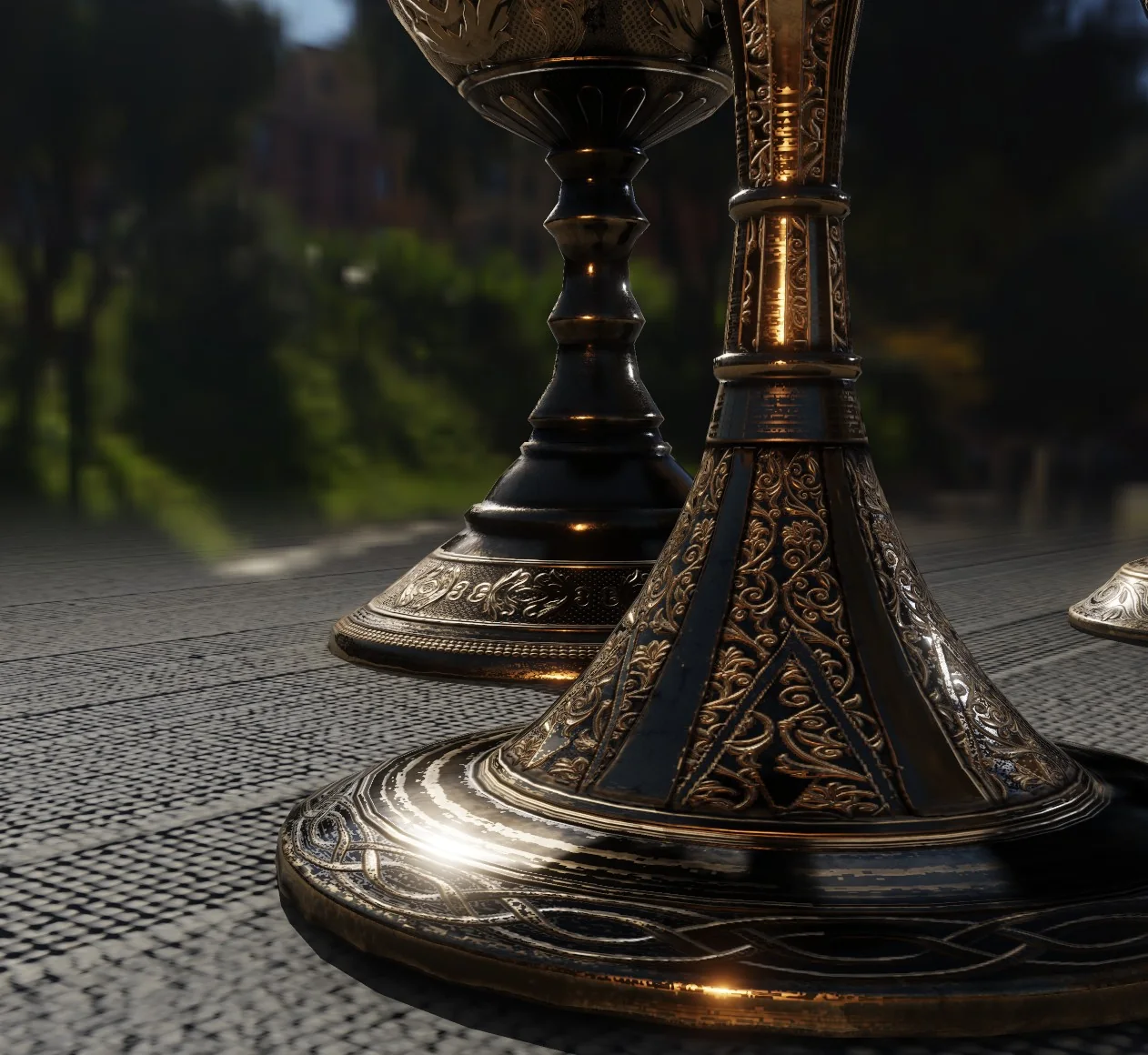
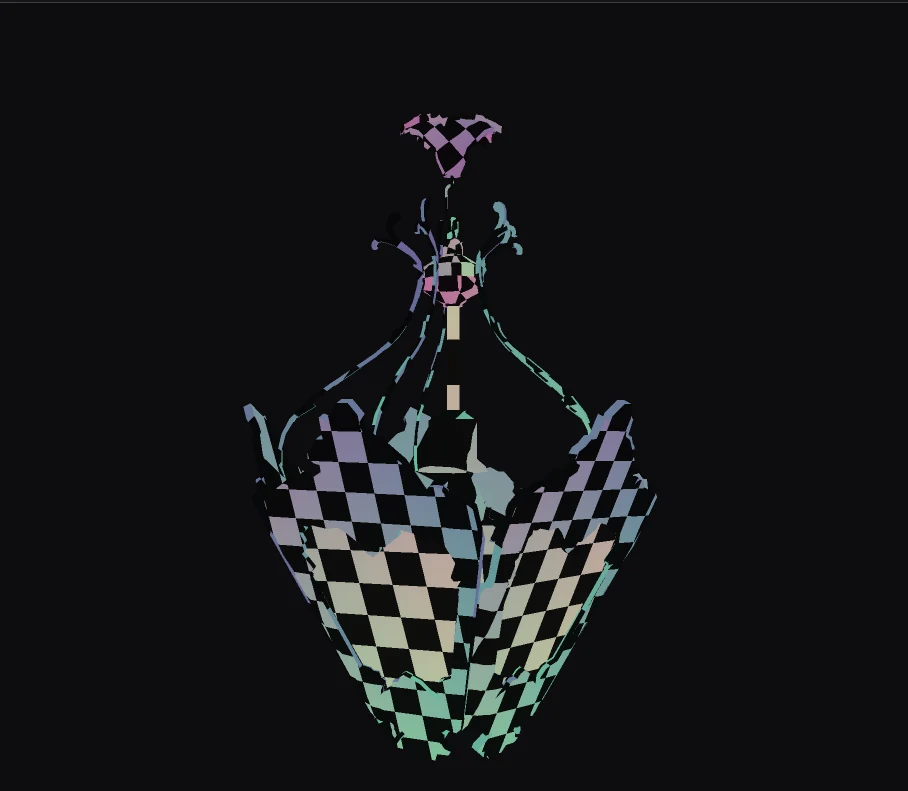
Fine patterns stay readable into the distance.
- Engraving, filigree and tight floor patterns hold up.
- Highlights hold still on bump maps.
Inspect
Inspection views
See what is in your model.
- Shaded, four wireframes, normals, UVs, albedo, depth, roughness and metalness.
- Format, triangles, vertices, materials, textures and bounding size.
- See which way is up in the file.
- Skin weights as a heat map.
Origin and scale
Check the origin and the size of a model.
- The gnomon draws the origin and three axes.
- A box one grid cell across sits beside the model.
- A human figure shows scale where a person helps.
Camera and framing
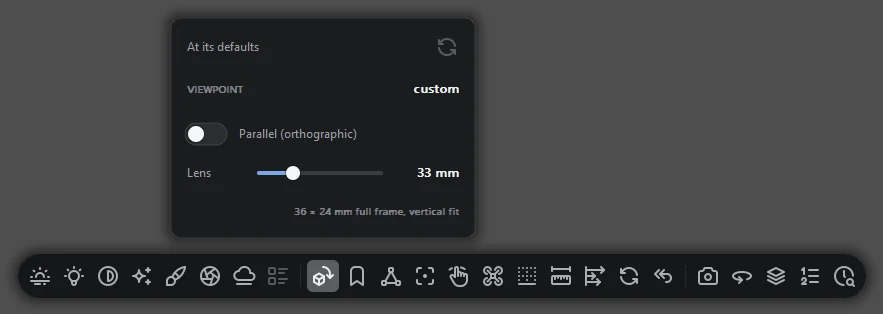
Eight preset views, free flight and bookmarks.
- Front, back, left, right, top, bottom and two isometrics.
- Focal length from 12 mm to 400 mm.
- Parallel projection on any camera.
- Three bookmark slots per file, kept when the file moves.
- A free camera takes you inside a model.
Make
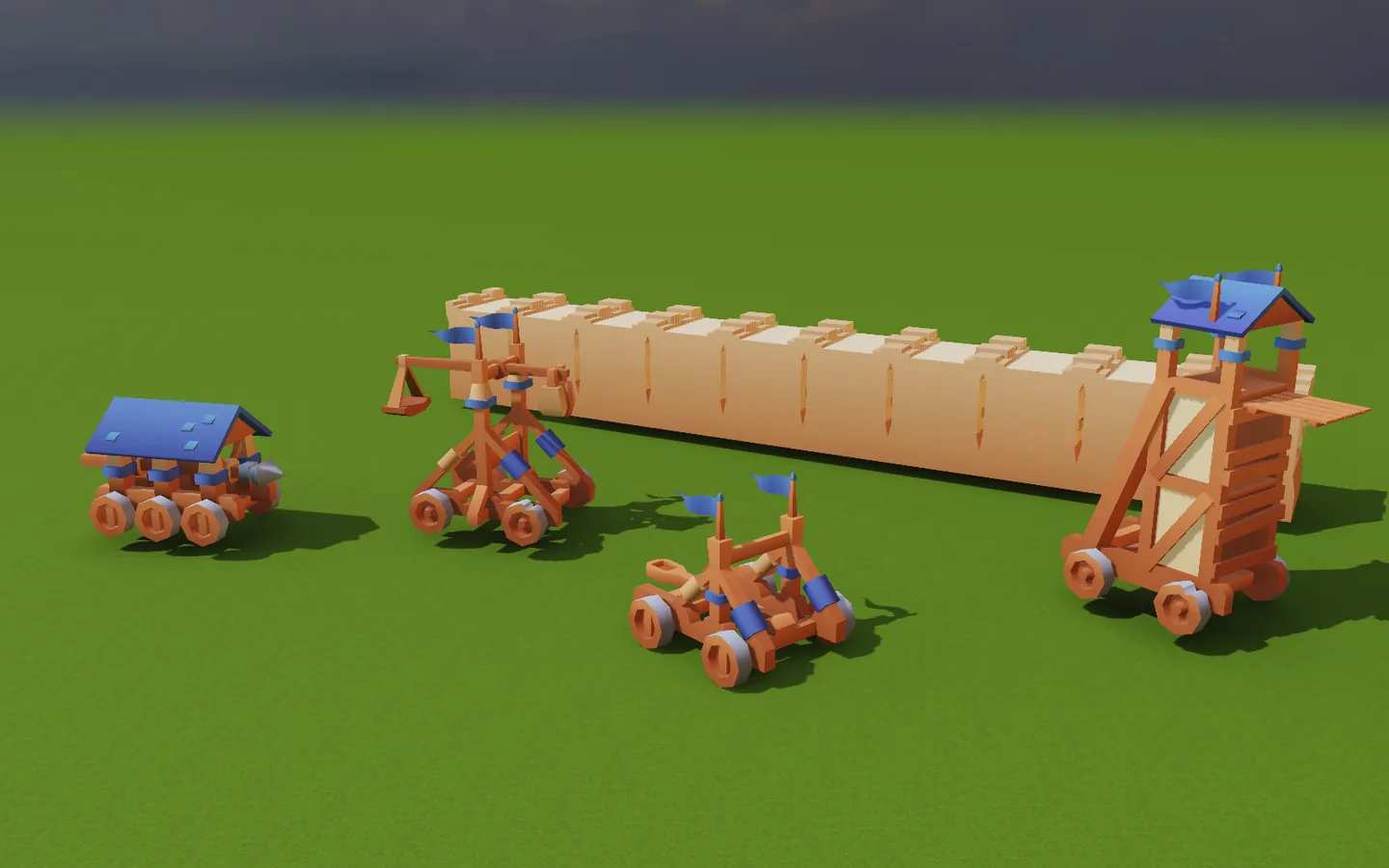
Scenes and objects
Arrange several models and edit them exactly.
- Type move, rotate and scale values.
- Snap to Step, Grid, Box, Pivot, Floor, Surface, Corner and Edge.
- Duplicate, copy, paste and Attach to an object or a joint.
- Undo and Redo across objects, joints and settings.
- Scene files carry their rig and animation.
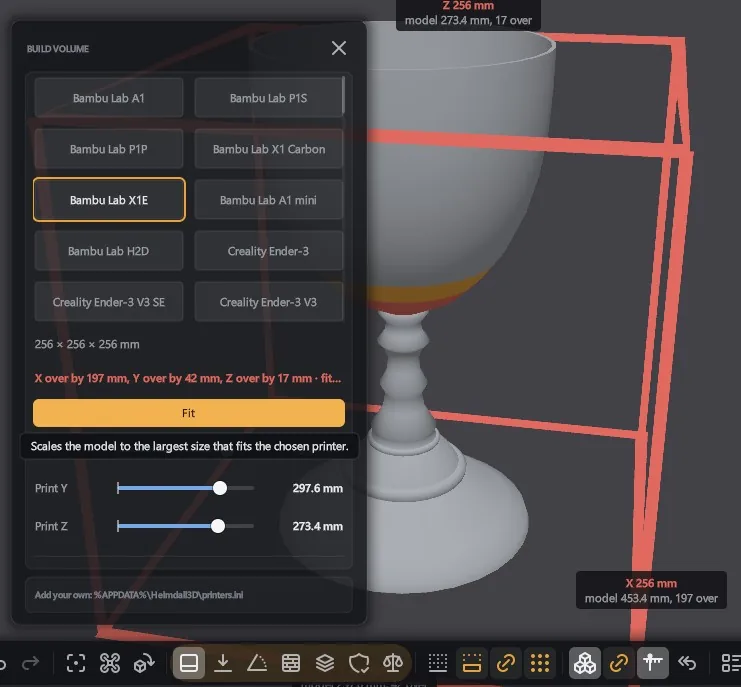
3D printing
Check a model against your printer.
- Size in millimetres, and 63 machines to fit it to.
- Show overhangs for Cura, PrusaSlicer and OrcaSlicer angles.
- Health, Volume, Lay flat, Layers and Thin walls.
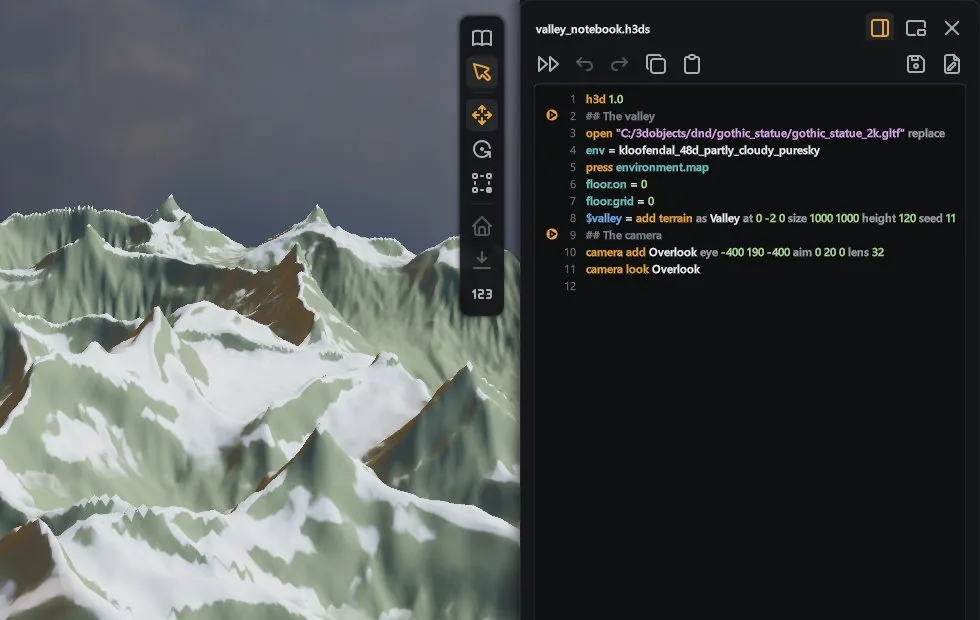
Scripts
Build a scene from a .h3ds file.
- Add models, lights and keys, place and aim them.
- A script runs as one step of Undo.
- Save any scene as a script that makes it again.
- Templates fill in named values when run.
- An AI model can drive the viewer, and you watch it work.
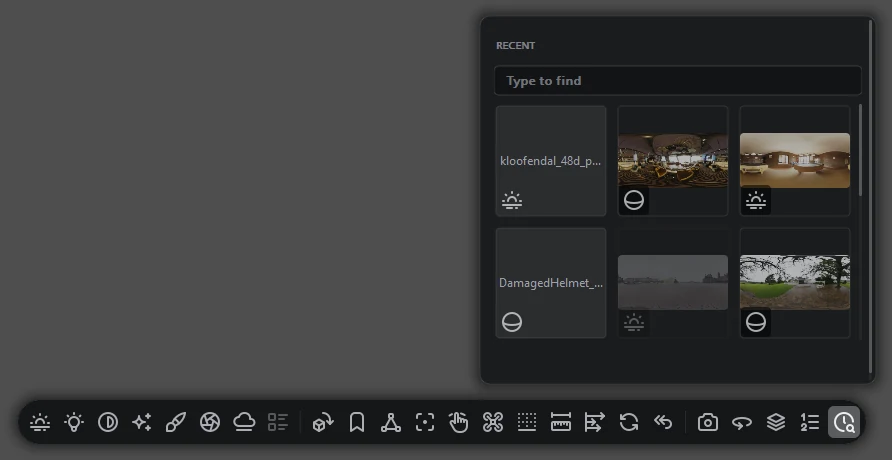
Recent files
A grid of recent files, each drawn as the model.
- Search filters the list as you type.
- A moved or deleted file is marked.
Viewer sections
Print, Rigging, Animation, 2D and Gaussian Splat each have their tools.
- The viewer remembers the section for each kind of file.
- Every control has a tooltip from the manual.
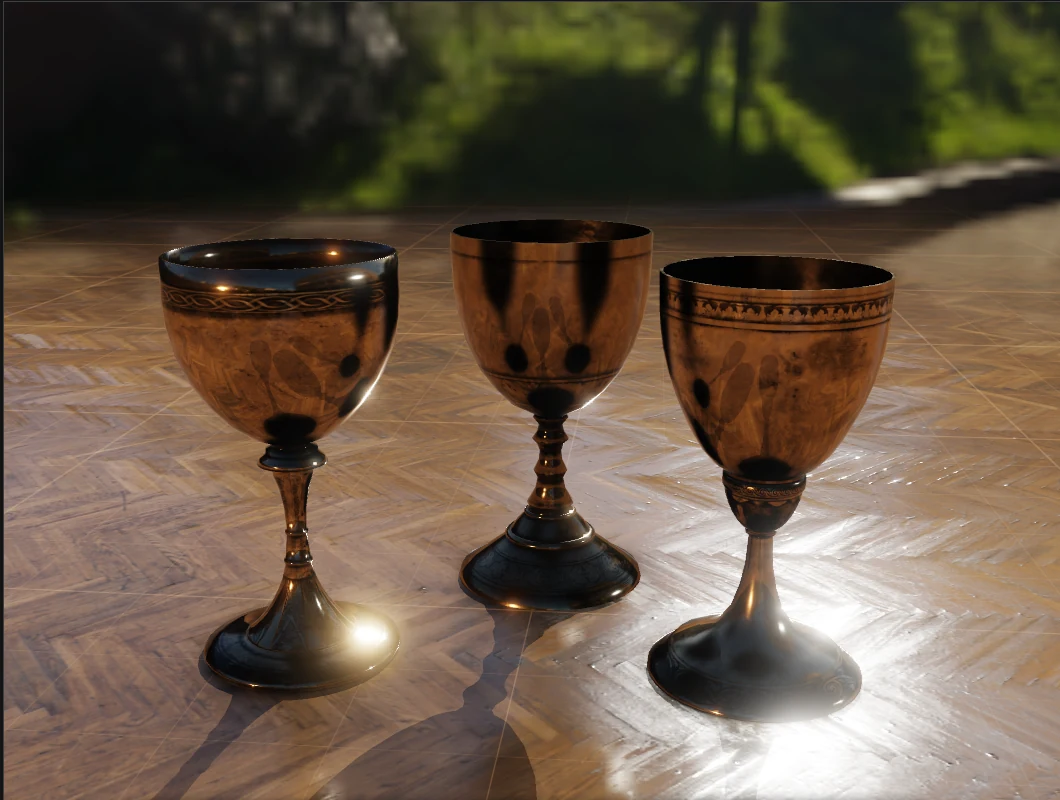
Captures and turntables
Save stills and turntables from the pane's view.
- PNG stills past 8K.
- Turntables as a PNG sequence, APNG, GIF or MP4.
- A shadow-catcher floor gives a transparent background.
- Send a picture to your portfolio, or the scene to Gulltopp.
- Saves run in the background.
Saving and export
Export your model with its rig and animation.
- Export model writes .glb or .fbx with skeleton, weights and clips.
- Rigs save to .h3rig and animation to .h3anim.
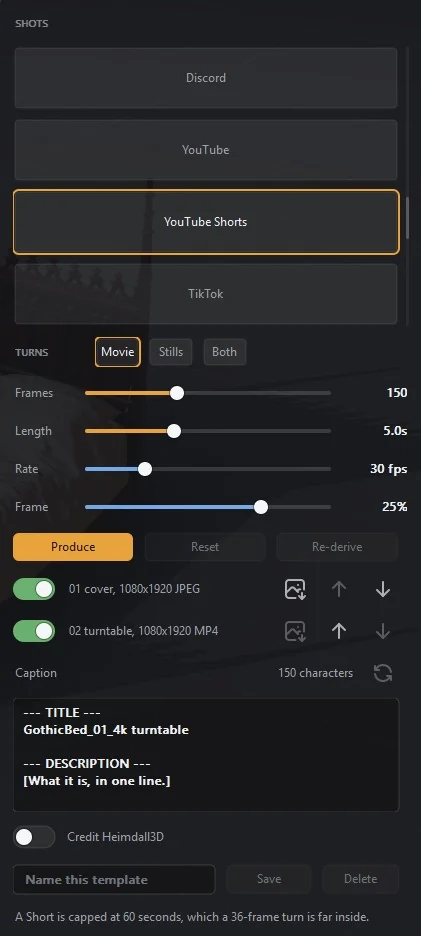
Shot templates
Pick a destination and press Produce.
- Every image and turnaround at the size the destination asks for.
- YouTube Shorts: a 1080 by 1920 cover and turn.
- A caption counted against the destination's limit.
- Edited templates save under your own name.
- Runs go on in the background.
Formats
File formats
Every format Heimdall3D opens, by kind.
- Models: glTF, GLB, FBX, VRM, OBJ, PLY, COLLADA, 3DS, 3MF, STL, BVH, USD, Alembic, VRML97, AMF.
- Splats: .ply, .splat, .ksplat, .spz, .sog and .ssog.
- Voxels and volumes: .vox, .qb, .binvox, .raw, .dat, NRRD, .bt, .ot, VDB, .sdf, .mol.
- Sliced print files: .gcode, .bgcode, .ctb, .cbddlp, .photon and .goo.
- 2D: Aseprite, GIF, WebP, APNG, .tmx and .ldtk.
- Images: HDR, EXR, PFM, DDS, KTX2, Basis and TIFF.
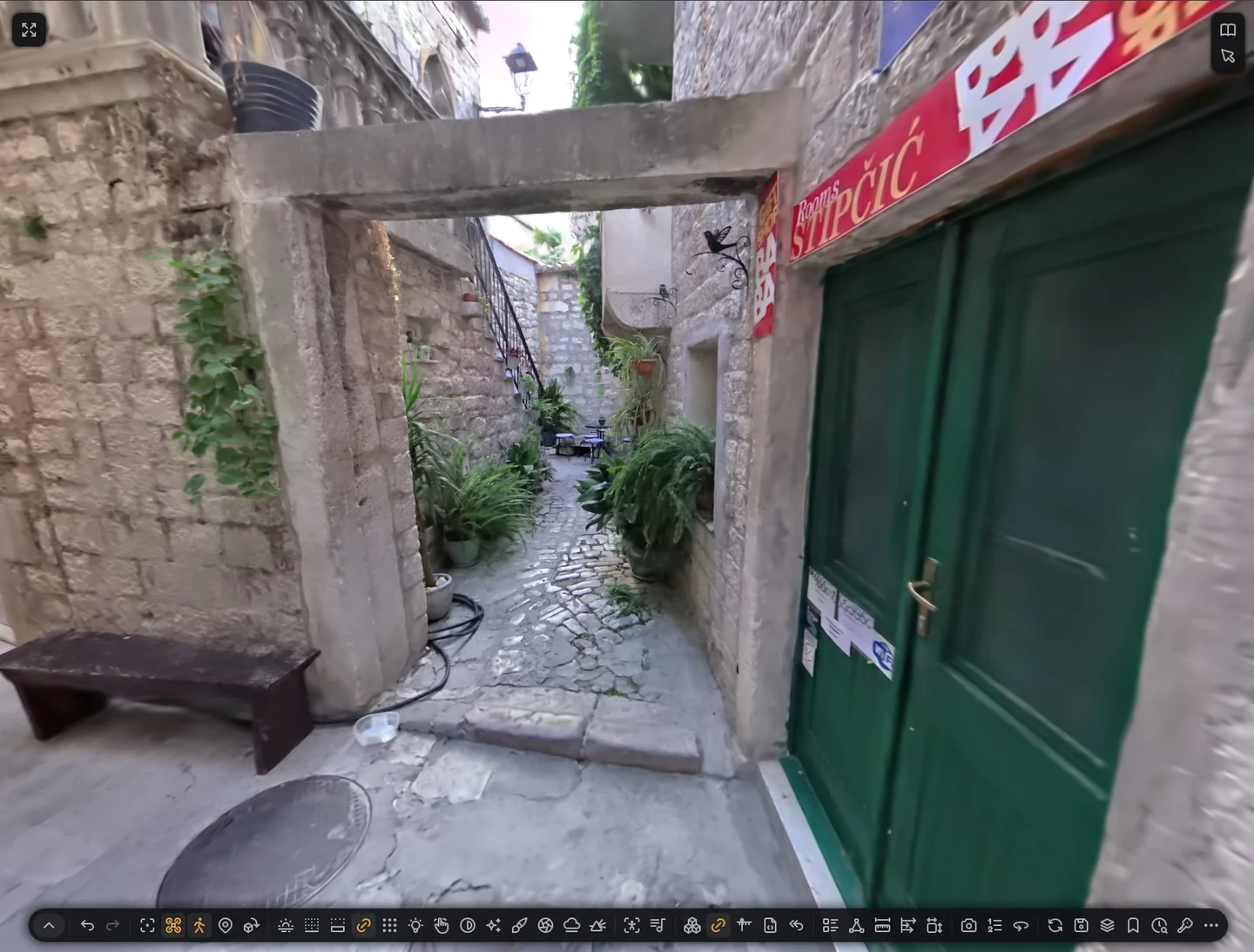
Gaussian splat captures
Open captures of any size.
- Streams from disk while you look, nearest detail first.
- Full colour that changes with the viewing angle.
- Walk inside with the keys or an Xbox controller.
- Jump between named places.
New formats
USD, Alembic, VRML97 and AMF open with their materials.
- USD with materials, variants and UsdSkel skinning.
- Alembic transform caches play as clips.
- VRML97 with textures, DEF and USE, and primitives.
- AMF raw or zipped, with colour and textures.
System requirements
Windows 10 or 11, 64-bit.
- Directory Opus 13, 64-bit, for the plugin.
- No redistributables.
- Drawing runs apart from Explorer and Opus.
- A licence applied in one window reaches the others within seconds.
Download Heimdall3D
Version 1.1.2 is available for Windows. The free version includes thumbnails, the preview pane and the viewer window, with no expiry. The full version adds the eight paid actions.
The free version needs no key, account or sign-up. A licence unlocks the eight paid actions: saving an image, copying a frame to the clipboard, writing a sprite sheet, recording a turntable or animation clip, running a shot destination, automatic rigging, putting motion capture onto a character, and exporting a model as GLB or FBX with skeleton, skin weights and clips.
One payment of €49, including VAT, covers the 1.x line with updates included. What the price covers.
| File | Route | Size |
|---|---|---|
| Heimdall3D-1.1.2-setup.exe | Installer | 162 MB |
| Heimdall3D-1.1.2.zip | ZIP | 186 MB |
Use the installer. It runs dopusrt.exe /flushplugins before it copies, and if
Opus is holding a file it says which. It removes an older Heimdall3D plugin so two copies
cannot claim the same file types, and its last page reports what your GPU can do. The ZIP does
none of that.
Neither the installer nor the plugin is code-signed, and there is no plan to sign them.
Windows SmartScreen therefore shows an unknown publisher warning on the downloaded
.exe. Files extracted from the ZIP get no warning.
Checking what you downloaded
Without a signature, the SHA-256 below is the check that the file is the one built here. Run this in PowerShell in the folder you downloaded to:
Get-FileHash .\Heimdall3D-1.1.2-setup.exe -Algorithm SHA256
The hash must equal the one recorded for that file:
Heimdall3D-1.1.2-setup.exe
36ca460f821049680ed749be7847fd8119420b8c0aa51101d07d4aa220b47a8b
Heimdall3D-1.1.2.zip
2889e7b622ca0cfe1a3b45667c8c538799fc158647e05e9c44c04a49e8776d90
A file that hashes to anything else is not the file that was built. Download it again rather than running it.
Report a file that renders incorrectly
The most useful report is the file, or a screenshot and what it should look like.
Be told when the next build lands
One message per release. No news, no offers, and the address goes nowhere else.
Your address is saved when you submit it, and a confirmation link is sent to it. An address that never confirms gets no further mail. You can ask to be removed at any time by mailing quark@heimdall3d.com.